
Guides and ideas
How to set DoneThen up, how families and grown-ups use it day to day, which chores to start with, where tags go, and limits that last.
Start here
- Set up DoneThen for your family: step by step, from your iPhone to your child’s first tap.
- Ways families use DoneThen: school mornings, homework, a shared iPad, pocket money and more.
- Set up Just me: limits on your own iPhone, step by step.
- Ways people use Just me: scroll less, study first, move more.
Below, ideas for families, for Just me and for parents who join in. Whichever you use, start small: a few chores or habits this week, and more once they stick.
For families
DoneThen works best when it fits what your family already does. These ideas are for children of about 6 to 9: adjust them to yours.
Start gently
A few chores that already happen work better than a long list. A first week could look like this:
- Two or three chores your child already does, like teeth, the bed and shoes, each counting at once.
- Enough free minutes each morning that the first days feel like a bonus, not a cut.
- “Try it together” in getting started: a chore’s code on your screen, so the first tap needs no sticker.
- Then tags where those chores happen, and one new chore at a time.
Screen time is optional for each child. You can start with coins and the streak, and turn screen time on later.
Chores by age
Pick chores your child can finish alone, in a few minutes, in one place. Getting started suggests three for your child’s age. Some more ideas:
Ages 6 and 7
- Make the bed
- Brush teeth, morning and night
- Dirty clothes in the hamper
- Shoes on the rack
- Set the table
- Feed the pet
- Tidy toys before dinner
Ages 8 and 9
- Empty the cutlery from the dishwasher
- Pack the school bag
- Clear the table
- Take out the recycling
- Homework at the desk
- Read for 20 minutes
- Practice an instrument
What a chore earns is up to you: for example, 10 minutes for making the bed and 15 for emptying the dishwasher, or coins for a chore that counts toward a goal.
Where to stick tags
Put each tag where the chore ends, so the tap comes when it’s done:
- The dishwasher, for emptying or loading it. Metal can stop an ordinary sticker from working, so use an on-metal sticker or stick the tag on the cupboard beside it.
- The toothbrush cup, or the wall beside it, away from splashes. One tag can count teeth in the morning and at night, each with its own time window.
- The shoe rack, for shoes put away after school.
- The laundry hamper, for dirty clothes in.
- The desk, for homework done.
- The hook for the school bag, for a bag packed for tomorrow.
One tag can serve several children: the chore counts for whoever taps it. When two chores at one tag are open at once, your child picks the one they did. On an iPad, print the tags’ QR codes and stick them up the same way. Which stickers to buy is in Support.
Instant or your OK
Each chore counts in one of two ways:
- Instant: the tap counts at once, without a parent. For everyday routines, like teeth, the bed or shoes.
- Your OK: the chore waits until a parent approves it, from the notification. For chores where how it’s done matters, like a tidy room.
Start with Instant, and switch a chore to your OK if it gets rushed. A tap can’t show how well a chore was done, or that a tag stayed where you put it, so for the chores that matter most, ask for your OK. Put each tag where its chore happens, so the tap itself says your child was there. And when you see a chore done yourself, you can mark it done in the app. DoneThen never asks for photos.
Time windows and days
A chore can count only at certain times, on certain days, or once:
- Teeth from 7:00 to 8:00, and again from 19:00 to 20:30.
- Make the bed before school, from 7:00 to 8:30.
- Trash on Tuesdays and Fridays.
- Wash the car once: it goes to the first child who does it.
- A reminder at 7:15 tells your child if a chore isn’t done yet.
A tap outside the window gets a friendly message instead of minutes. On a day the chore isn’t on, the tag says “Not today!”
Coins and stamps
Minutes are for today. Coins and stamps are for the longer run.
Coins, for a bigger goal
- Set a goal in your words: 100 coins for €10, or a day at the zoo.
- Choose it together, and let chores earn coins, minutes or both.
- Coins add up with no cap and never reset.
- Record a payout when you hand the reward over. DoneThen only counts: no money moves through it.
Stamps, for recognition
- Give one after the moment, for something your child did: Kept Trying, Did It Myself, Brave Try.
- Add a line in your own words. The app reads it aloud.
- A stamp is never payment: don’t promise one for a chore, and never take one away.
Why stamps stay a surprise: in a well-known study, children promised an award for drawing later chose to draw less than children who got the same award as a surprise (Lepper, Greene and Nisbett, 1973). The authors note that this doesn’t argue against rewards for activities children don’t start out liking.
Challenges for learning
Challenges are chores played in the app, so they need no tag. Your child can try again until they pass.
- Math practice: adding and taking away up to 10, 20 or 100, the times tables, or dividing. The app makes the sums.
- A quiz you write: 1 to 20 questions with 2 to 4 answers each, read aloud for children who can’t read yet. Try this week’s spelling words, or the planets.
- A puzzle: one of DoneThen’s pictures in 3 × 3 or 4 × 4 pieces.
- A discovery mission, like “Find a red leaf”, which your child marks with “I did it!” and you approve when they show you. Or try “Find something round in the kitchen”.
Math and quizzes pass at a mark you set, 8 of 10 to start. A challenge earns like a chore and counts for the streak.
Asking for more time
Your child can ask for 10, 15 or 30 more minutes from their home, or with the locked app’s Ask a parent button. You answer from the notification with Give or Not now, and they hear either way.
- Up to 3 asks a day to start. Choose 0 to 10 in your child’s rules; 0 turns asking off.
- One ask at a time, and an ask left open ends at midnight.
- Five minutes before the minutes run out, your child gets a heads-up, so the lock is never a surprise.
Keep asks for real moments, like the end of a movie with a friend. If they become a habit, lower the number a day.
Just me
For an adult who limits their own screen time on their own iPhone. How Just me works.
Habits and their tags
Choose habits you want to do more, and put each tag where the habit happens:
- Read 20 pages: a tag on the bookshelf or the nightstand.
- Stretch: on the yoga mat.
- Work out: on your gym bag.
- Practice an instrument: on the music stand.
- Do the dishes: by the sink.
- Tidy up for 10 minutes: on the laundry basket.
Habits away from home, like a walk or a run, don’t need a tag: check them off in the app. A habit can have days, a time window or a reminder, like a workout on Mondays, Wednesdays and Fridays, with a reminder at 18:00. Earning about what a habit takes keeps it simple: 20 minutes for 20 pages.
Free and earned breaks
Take a break, on Today or on a locked app, adds a few minutes at once. There are two kinds:
Free breaks
- 5, 10 or 15 minutes at once.
- Any time, with no game.
- 2 a day to start; choose 0 to 10.
Earned breaks
- Off until you turn them on, in Your limits.
- Only once your minutes are at zero.
- Win a chess puzzle, a 300-step walk or a minute of breathing.
- Each win adds 5, 10 or 15 minutes, as many times a day as you choose, from 1 to 10. To start: 10 minutes, twice a day.
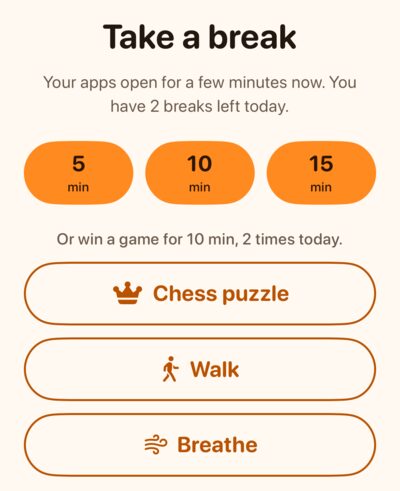
Want a break to take a little effort? Lower your free breaks to 0 or 1, and turn on earned breaks. Keep only the games you like. The walk counts with your phone locked in a pocket, and needs an iPhone, since an iPad doesn’t count steps. Only wins count, and you can try as often as you like: a missed chess puzzle shows the right move, and another is a tap away.
Protected limits
Once your setup day is over, your limits are protected: changing them takes a tap on one of your tags, or a 10-minute wait. Then changes stay open for 10 minutes.
- Protected: the apps that need minutes, your free minutes, the bank, breaks and earned breaks, and stopping DoneThen.
- Always open: adding and changing habits, your week, notifications, your subscription and deleting your account.
- New habits wait to earn: while your limits are protected, a new habit, or one changed to earn more, starts earning 10 minutes later. Today shows when, like “From 20:42”.
- Tags are optional: without them, the 10-minute wait opens changes.
Why it helps: you set your limits with a clear head, and a moment of wanting your apps can’t undo them. The tag or the wait puts a pause between wanting more time and taking it. It’s a speed bump, not a cage: your iPhone’s Settings can always turn DoneThen off. There’s research on limits people set for themselves.
Start generous, then tighten
- On the first day, everything stays open, so try your apps, habits and limits before they’re protected.
- In the first week, keep the 30 free minutes a day, or more, and see how your days go.
- Then look at Week, this week next to the week before, and lower your free minutes by 5 or 10. Earn the rest with habits.
- Keep a break or two, free or earned, for the days that need one.
Tightening is a change too, so it opens with a tag tap or the 10-minute wait.
Join in, for parents
A parent can earn their own screen time on their own phone, inside the family. Join in from the Family tab: it sets up your habits, Screen Time for yourself with Face ID, and your apps. The family’s subscription covers it.
- Two spaces, never mixed: Me opens your own space, which works like Just me, and Family switches back.
- The same start as Just me: 30 free minutes a day, at most 120 saved, 2 breaks a day, and earned breaks off.
- Chores together: a family chore can include parents who joined in, like Do the dishes for Sam, Mia and you. Each of you earns with your own tap.
- Protected limits work as in Just me, for your apps, your limits and the family chores you’re in.
Try a reading half hour for everyone: one tag on the bookshelf, and a chore for the children and you. The other parent can join in too, on their own phone. Stop joining in, in your own space’s Settings, removes your own habits, minutes and history, and lifts your limits on the phone.
Have an idea that works in your home? Write to us at contact@chelodo.com.