
Ways people use Just me
Everyday situations, and how to set up Just me for each: the apps that need minutes, the habits that earn them, and how strict to make your limits.
The basics
Every setup on this page uses the same few pieces. New to Just me? Follow the step-by-step setup first, then come back for ideas.
- Apps that need minutes: you pick them in Apple’s own picker. Only time in them counts down, and at zero they lock.
- Free minutes: 30 a day to start, with at most 120 saved. Unused minutes reset at midnight.
- Habits: each one earns the minutes you choose. Tap its tag where it happens, or, if it has no tag, check it off in the app.
- Breaks: Take a break adds 5, 10 or 15 minutes at once, twice a day to start.
- Protected limits: once your setup day is over, changing your apps or limits takes a tap on one of your tags, or a 10-minute wait.
Pick the situation closest to your days, and start with one or two habits.
Scroll less in the evening
You sit down after dinner to check one thing, and an hour later you’re still scrolling. Give your evenings a budget of minutes, and earn more by doing something first.
How to set it up
- Pick the apps that take your evenings, like social media and video, as the apps that need minutes. Only time in them counts down.
- Keep the 30 free minutes a day to start. Unused minutes reset at midnight.
- Add a habit or two for the evening, each with a tag where it happens: Do the dishes by the sink, or Tidy up for 10 minutes on the laundry basket.
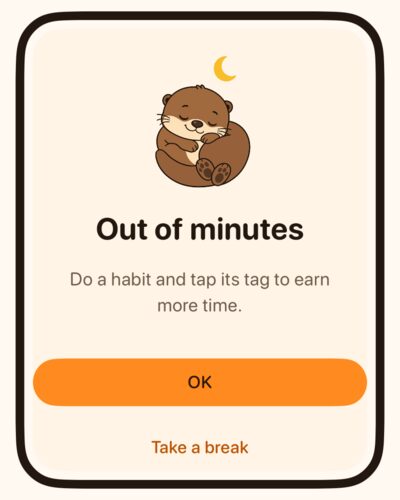
- At zero, the apps lock. A notification tells you when 5 minutes are left, and a locked app offers Take a break when you need a moment.
Tip: pick only the apps that pull you in. Apps you leave out, like messages or maps, never count down.
Study or work first, then your phone
You mean to work or study first, but your phone gets there before you do. Let the work earn your phone time instead.
How to set it up
- Add a habit of your own, like Study for an hour, and choose the minutes it earns.
- Stick its tag on your desk, so the tap comes when you’re done.
- Give it days, a time window and a reminder that match your week, like Monday to Friday from 9:00 to 17:00, with a reminder at 9:00.
- If you work in two blocks, let it count twice a day.
Tip: if you work in different places, leave the habit without a tag, and check it off in the app when you’re done.
Move more: workouts and walks
You want to move more, but your phone is always closer than your shoes. Let your minutes come from moving.
How to set it up
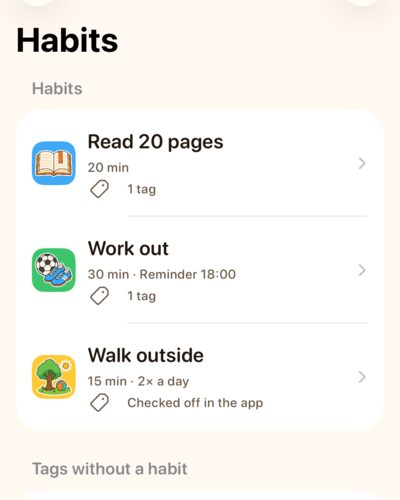
- Add Work out, with its tag on your gym bag. Give it days and a reminder, like Mondays, Wednesdays and Fridays at 18:00.
- Add Walk outside without a tag, and check it off in the app when you’re back. It can count more than once a day.
- Stretching at home? Put a tag on the yoga mat.
- Turn on earned breaks and keep the walk: once your minutes are at zero, 300 steps win you a break.
Tip: the walk counts with your phone locked in your pocket, and your steps never leave the phone. If it doesn’t count your steps, allow Motion & Fitness for DoneThen in your iPhone’s Settings.
Read more instead of scrolling
The book on your nightstand hasn’t moved in weeks, and your phone gets the time instead. Turn it around: read first, and earn your minutes for it.
How to set it up
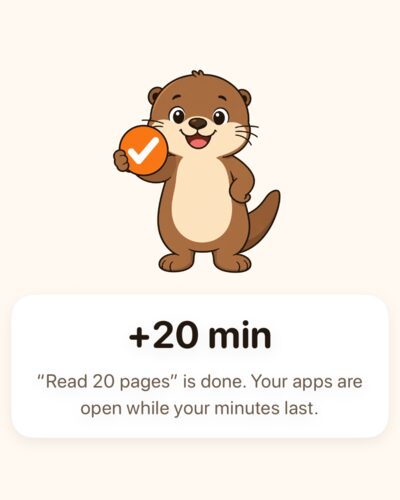
- Add a reading habit, like Read 20 pages.
- Stick its tag on the nightstand or the bookshelf, and tap it when you close the book.
- Let it earn about what it takes: 20 minutes for 20 pages.
- Add a reminder for the evening, if you like.
Tip: if you read on your phone, leave your reading app out of the apps that need minutes, so reading never costs you any.
For more ideas, see habits and where to put their tags.
Ride out the urge to scroll
You set your limits with a clear head. Then a moment comes when you want just a few more minutes, and changing your limits would be easy. Put a little effort between wanting more time and taking it.
How to set it up
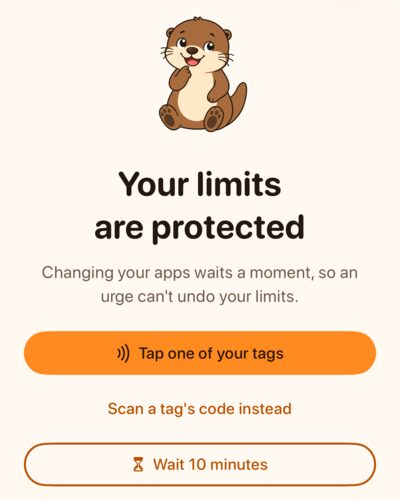
- There’s nothing to turn on: once your setup day is over, your limits are protected. Changing your apps or limits, including the steps below, takes a tap on one of your tags, or a 10-minute wait. Then changes stay open for 10 minutes.
- Lower your free breaks to 0 or 1.
- Turn on earned breaks, in Settings under Your limits, and keep the games you like: a chess puzzle, a 300-step walk or a minute of breathing.
- Choose what a win adds, 5, 10 or 15 minutes, and how many earned breaks you get a day, from 1 to 10.
Tip: when you want more time, pick the walk or the breathing: 300 steps or a minute of slow breaths before your apps open again.
It’s a speed bump, not a cage: your iPhone’s Settings can always turn DoneThen off. More on free and earned breaks, and the research on limits people set for themselves.
Cut down on screen time, step by step
You want to cut back for good, not just for a week. Start where you are, and tighten a little at a time.
How to set it up
- On your first day, everything stays open, so try your apps, habits and limits before they’re protected.
- In the first week, keep the 30 free minutes a day, or more, and see how your days go.
- Then look at Week, this week next to the week before, and lower your free minutes by 5 or 10. Earn the rest with habits.
- Keep a break or two, free or earned, for the days that need one.
Tightening is a change too, so it opens with a tag tap or the 10-minute wait. More in Start generous, then tighten.
Tip: on Sundays, DoneThen sends “Your week”. It’s a good moment to look at Week and change one thing.
Lock your apps now, for a focused stretch
Sometimes you don’t want to wait for zero. You’re about to start something that needs your full attention, or you’re done for the day, and you’d like your apps locked now.
How to set it up
- Tap the minutes card on Today. It opens Take a break, with Use fewer minutes at the bottom; with no break to take, it opens Use fewer minutes itself. It shows while you have minutes left.
- Take off 10, 15 or 30 minutes, each when you have that many left. Or tap Lock now, which asks “Lock your apps now?” and then takes every minute left.
- It needs no tag and no wait: it only makes your limits stricter.
- Slipped? The result offers Undo. The minutes come back only within two minutes, so it’s a fix for a slip, not a way around the lock.
Tip: pair it with a habit. Lock now before you study, and let the habit’s tag earn your minutes back when you’re done.
Set an example for your children
Your children earn their screen time with DoneThen, and you’d like to play by the same rules. Join in gives you your own screen time on your own phone, inside the family, and works like Just me.
How to set it up
- On the Family tab, tap Join in. It sets up your habits, Screen Time for yourself with Face ID, and your apps.
- You start like Just me: 30 free minutes a day, at most 120 saved, 2 breaks a day, and earned breaks off. The family’s subscription covers it.
- Me opens your own space, and Family switches back. The two are never mixed.
- In a family chore, choose yourself too, like Do the dishes for Sam, Mia and you. Each of you earns with your own tap.
Tip: try a reading half hour for everyone: one tag on the bookshelf, and a chore for the children and you. The other parent can join in too, on their own phone.
Started with Just me? Start a family, in Settings, keeps your habits, minutes and limits in your own space. There’s no way back to Just me, short of deleting your account. More in Join in, for parents.
Start with one habit
Choose the one that sounds most like you. Setting it up on your own iPhone takes a few minutes with the step-by-step setup.
Just me is free for 14 days, with no card needed. See how Just me works and what it costs.