
Set up Just me
Limits on your own iPhone, step by step: habits that earn your minutes, the apps that cost them, and a speed bump you set for yourself.
What you need
- Your iPhone, and a few minutes.
- Face ID or your passcode, to approve Screen Time for yourself.
- Tags are optional. A tag is a small NFC sticker your iPhone reads with a touch, or a printed QR code, stuck where a habit happens. Without one, you check the habit off in the app.
Free for 14 days. No card needed. What Just me is.
1. Choose Just for me
Install DoneThen from the App Store and open it. On “Who is it for?”, tap Just for me. Four short pages show how it works; then sign in with Apple. DoneThen asks only for your email address, and Apple lets you hide it.
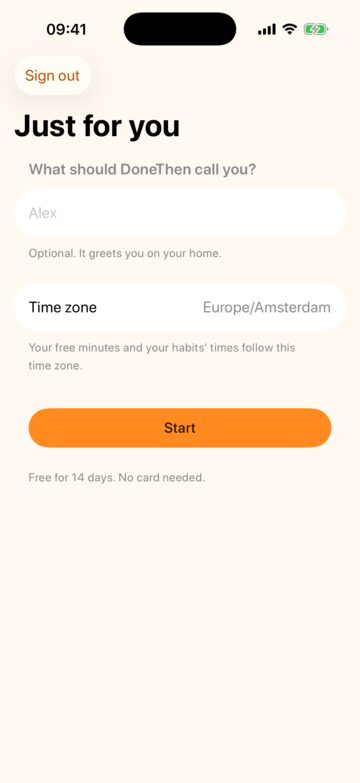
Tell DoneThen what to call you, if you like, check the time zone your free minutes and habits follow, and tap Start.
2. Pick your habits
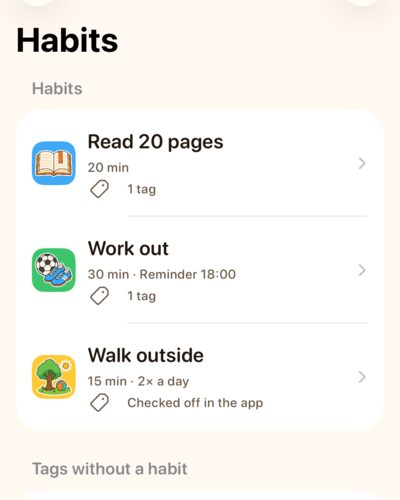
“What will earn your minutes?” Seven ideas to switch on: Read 20 pages, Work out, Walk outside, Tidy up, Do the dishes, Practice music and Cook a meal, each with the minutes it earns. Reading and a workout are on to start. Tap Continue.
Choose habits you want to do more, and earn about what they take: 20 minutes for 20 pages. You can change them, and add your own, any time in Habits. A habit can have days, a time window or a reminder, like a workout on Mondays, Wednesdays and Fridays at 18:00.
3. Turn on Screen Time
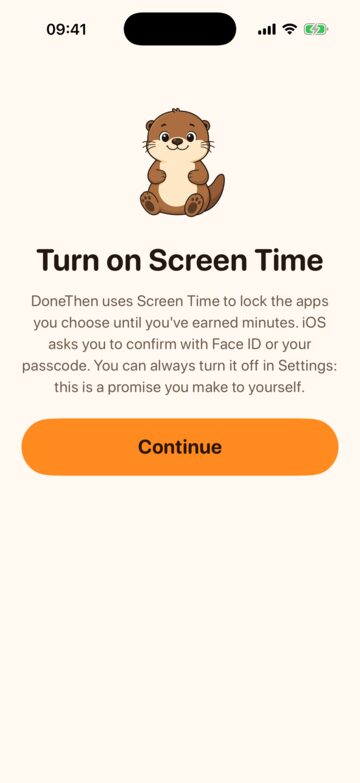
DoneThen uses Apple’s Screen Time to lock the apps you choose until you’ve earned minutes. Tap Continue, and confirm with Face ID or your passcode. You can always turn it off in your iPhone’s Settings: it’s a promise you make to yourself, not a cage.
4. Choose the apps that cost minutes
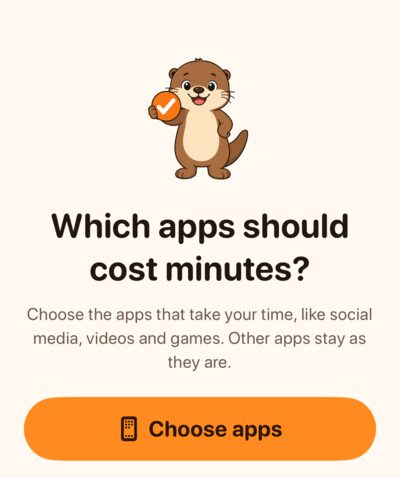
Tap Choose apps. Apple’s own picker opens: choose the apps that take your time, like social media, videos and games. Other apps stay as they are, and DoneThen never learns which apps you picked. Tap Done.
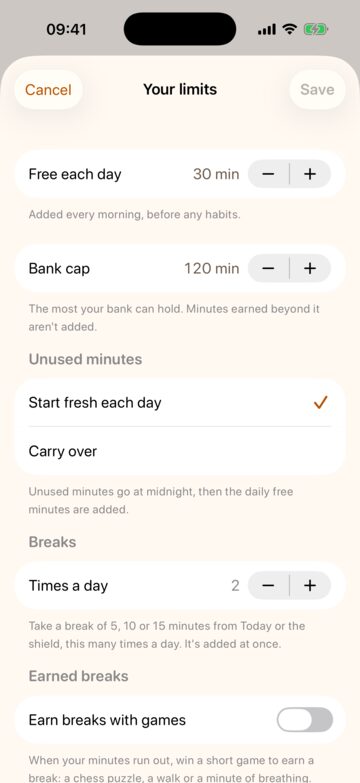
You start with 30 free minutes a day. Unused minutes start fresh each day, and you can save up to 120. When the minutes run out, the apps you picked lock until you earn more.
5. Your first day
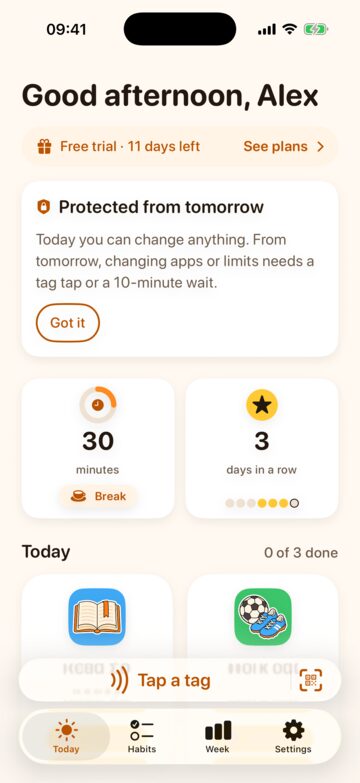
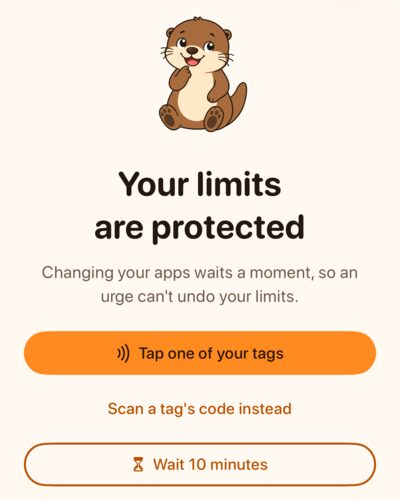
Today you can change anything: try your apps, habits and limits. From tomorrow they’re protected, and changing your apps or limits takes a tag tap or a 10-minute wait (step 8).
6. Earning minutes
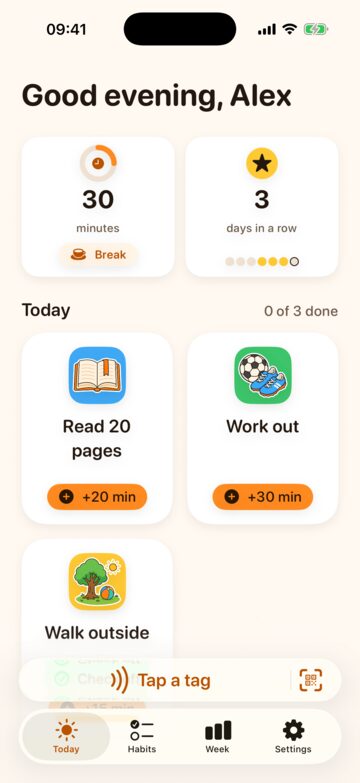
Today shows your minutes and today’s habits. Do a habit, then:
- With a tag: tap it with your iPhone, using Tap a tag. To pair one, open the habit in Habits and tap Pair a tag: write an NFC sticker by holding the top of your iPhone to it, or use a QR code you print.
- Without a tag: tap Check off on the habit, once it’s done. Good for a walk or a run.
The minutes are added at once. Where tags work well, from the bookshelf to the yoga mat: habits and their tags.
7. Breaks, and using fewer minutes
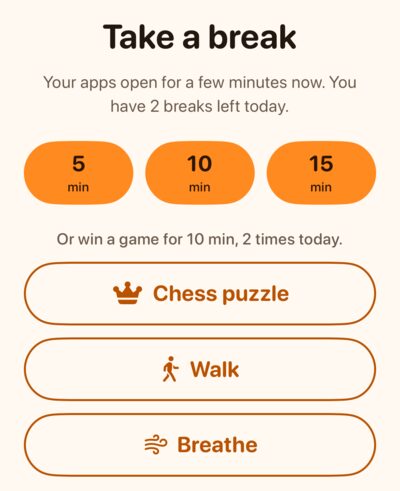
Tap your minutes on Today for Take a break: 5, 10 or 15 minutes at once, twice a day to start. A locked app offers it too.
Want breaks to take a little effort? Turn on earned breaks in Settings, under Your limits: once your minutes run out, a chess puzzle, a short walk or a minute of breathing wins you a break. Free and earned breaks.
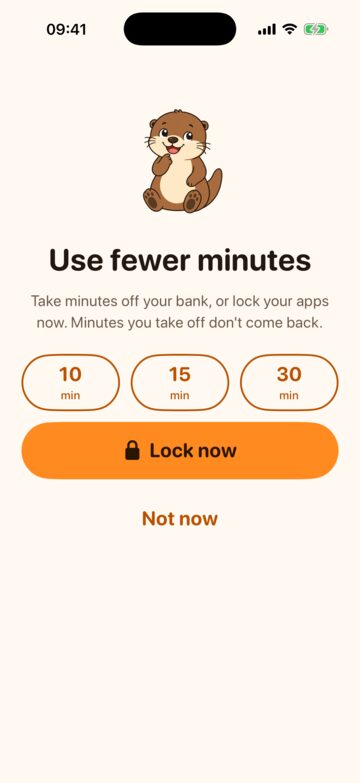
Want fewer minutes instead? Use fewer minutes, at the bottom of Take a break, takes 10, 15 or 30 minutes off, or locks your apps now. It needs no tag and no wait, since it only makes your limits stricter, and Undo puts the minutes back right after a slip.
8. Your limits, protected
In Settings, Your limits holds your free minutes each day, the most you can save, whether unused minutes carry over, breaks a day, and earned breaks.
From your second day, they’re protected: changing your apps or limits takes a tap on one of your tags, or a 10-minute wait, and then changes stay open for 10 minutes. Adding and changing habits is always open, though a new habit, or one changed to earn more, starts earning 10 minutes later. You set your limits with a clear head, and a moment of wanting your apps can’t undo them. More on protected limits.
9. Week by week
Keep the 30 free minutes, or more, in the first week, and see how your days go. Then look at Week, this week next to the week before, and lower your free minutes by 5 or 10. Earn the rest with habits, and keep a break or two for the days that need one.
Have children? Start a family, in Settings, turns Just me into a family and keeps your own screen time.
Next: ways people use Just me, to scroll less, study first or move more, and more ideas. Stuck? Support has the common questions, and a person answers every email.