
Ways families use DoneThen
Everyday situations, from school mornings to a shared iPad, and how to set DoneThen up for each one.
Find your situation
Each idea starts with a moment many families know, then the settings that fit it and a tip. They’re for children of about 6 to 9: adjust them to yours.
- New to DoneThen? Start with the step-by-step setup, from your iPhone to your child’s first tap.
- Chores by age and where to stick tags are in Guides and ideas.
A morning routine your child runs
School mornings are full of small jobs: the bed, teeth, the school bag. Make each one a chore with its own tag, and your child sees what’s left and taps each one off. Reminders come from their device, not from you.
How to set it up
- Add two or three chores your child already does in the morning, like Make the bed and Brush teeth. Getting started suggests three for your child’s age.
- Keep them on Instant, so the tap counts at once, without you.
- Give each a time window before school, like 7:00 to 8:30 for the bed. A tap outside it gets a friendly message instead of minutes. More on time windows and days.
- Add a reminder, like 7:15. If the chore isn’t done yet, your child’s device reminds them.
- Stick each tag where its chore ends, like the toothbrush cup or the hook for the school bag. See where to stick tags and which stickers to buy.
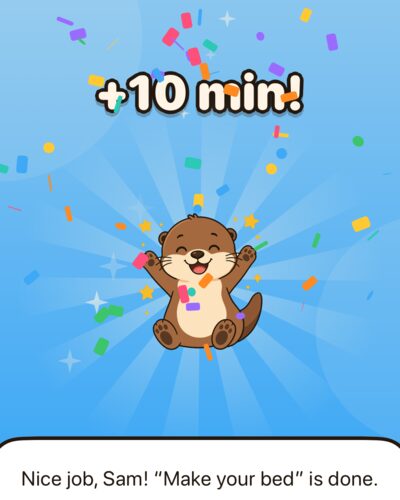
Tip: one tag at the toothbrush cup can serve two chores: teeth in the morning, from 7:00 to 8:00, and at night, from 19:00 to 20:30. A tap counts the one that’s open.
Homework and reading before games
After school, the games call first. Make homework and reading the chores that earn minutes, and games come after: the apps you limit only open while your child has minutes.
How to set it up
- Add a homework chore with its tag at the desk, and a reading chore, like Read for 20 minutes, with its tag on the bookshelf.
- Let homework wait for your OK, which you give from the notification or the Approvals tab. Saw it done yourself? Mark it done in the app. More on Instant or your OK.
- Choose the days it’s on, like Monday to Friday, so it’s only there on school days.
- Add a challenge for practice: math with sums the app makes, or a quiz you write. They need no tag, and pass at a mark you set, 8 of 10 to start. See challenges for learning.
- Once the routine settles, check the free minutes each morning in your child’s rules: if they cover the afternoon’s games, lower them a little.
Tip: turn this week’s spelling words into a quiz, with 2 to 4 answers for each word. Your child can try again until they pass.
Siblings sharing one iPad
One iPad, two children, and the question of whose turn it is. Each child gets their own minutes, coins and streak on it, and nothing ranks one against the other.
How to set it up
- Set the iPad up for the first child: Set up a device on your child’s page, then This is my child’s device on the iPad.
- Add the next child on the iPad: tap For parents, enter a code or your PIN, and use a pairing code from that child’s page.
- Choose its limited apps for both children: the iPad has one list for everyone.
- Print your tags’ QR codes, since iPads can’t read NFC. In the Chores tab, tap Print all QR codes, and stick each code where its chore happens.
- Between turns, the apps are locked and DoneThen asks who’s playing. Each child taps their face, then their animal PIN: three animals in order, picked the first time they play. A turn lasts 30 minutes, or until they tap Done playing.
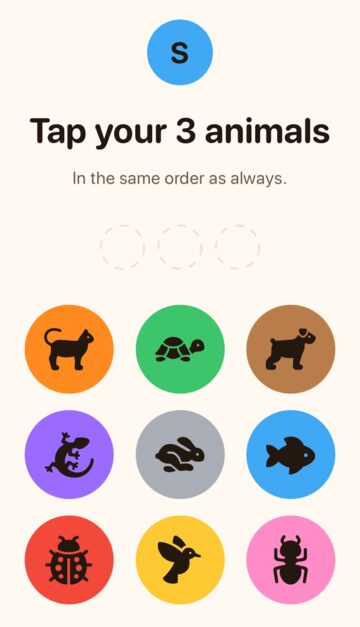
Tip: a chore scanned between turns counts for whoever picks themselves next, so that should be the child who did it. Forgotten animals? Reset the PIN on their page in your app. More in a shared iPad and sharing an iPad.
Pocket money your child earns
You’d like pocket money, or an allowance, to be something your child works toward. Chores can earn coins toward a goal you agree on, and you hand over the money or the reward yourself.
How to set it up
- Set your child’s goal in your words, like 100 coins for €10, or a day at the zoo. Choose it together.
- Decide what each chore earns: coins, minutes or both.
- Add a streak bonus if you like: some coins every so many days in a row, like 5 coins every 7 days.
- Give coins yourself, with an optional note, for help that wasn’t a chore.
- When you hand the reward over, record a payout. No money moves through DoneThen, and it doesn’t turn coins into money.
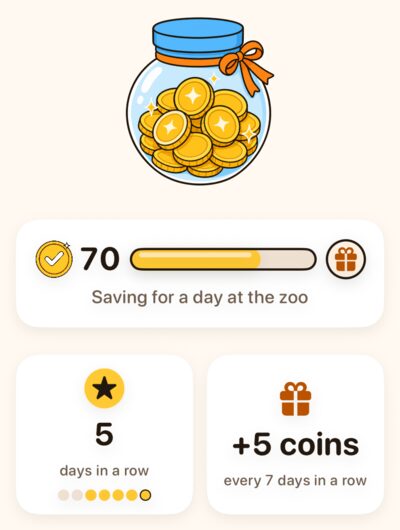
Coins add up with no cap and never reset, and screen time never spends them. Coin history, on your child’s page, lists chores, gifts and payouts. More on coins and stamps.
Tip: keep stamps out of the deal. A stamp is recognition you give after the moment, never payment, so don’t promise one for a chore.
Chores without screen time limits
Maybe screen time isn’t the struggle in your home, and you’d like the chores and rewards without any limits. Screen time is optional for each child. Without it, chores earn coins and the streak, and nothing on your child’s device is locked.
How to set it up
- In the Family tab, tap Add a child, and choose that their chores don’t earn screen time.
- Pair their device. That’s all: it needs no Screen Time setup. See setting up your child’s device.
- Let chores earn coins toward a goal. Every day with a chore done adds to the streak, and a streak bonus, if you add one, gives coins.
- Now and then, give a stamp for something your child did, like Kept Trying, with a line in your own words that the app reads aloud.
Tip: you can start this way and turn screen time on later in your child’s rules, then set up Screen Time on their device and pick the apps.
Children who can’t read yet
Many younger children can barely read, and a screen full of words isn’t for them. DoneThen’s child app works with pictures, colors and sounds, and reads aloud where it counts: the first welcome, quizzes and the words on a stamp.
How to set it up
- Give each chore a picture and a color. Today’s chores show on your child’s home as picture cards, with how many are done.
- Use the playful look: big outlined titles, chunky buttons, and your child’s own color on the screen. It comes by age through age 8, or pick Playful in your child’s details.
- Keep the device’s sounds on: the first welcome is read aloud, and a chore that counts at once ends with a celebration and a sound.
- For learning, try math up to 10, a picture puzzle, or a quiz you write, read aloud for children who can’t read yet. Answers are big colored buttons, with no typing.
- When two chores share a tag and both are open, your child picks the one they did from their pictures.
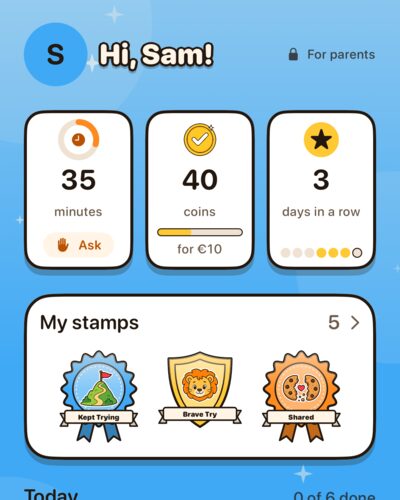
Tip: do the first tap together. In getting started, “Try it together” puts a chore’s code on your screen, so your child’s first tap needs no sticker.
As your child gets older
An older child does more on their own and wants more say. DoneThen can move with them: a calmer look, bigger chores that wait for your OK, and a clear way to ask for more time.
How to set it up
- Check the look in your child’s details. By age switches to the grown-up look after age 8, or pick Grown-up or Playful yourself. Your child can’t change it.
- Give bigger chores, like emptying the dishwasher or taking out the recycling, and let them wait for your OK, which you give once you’ve seen the result.
- Add chores on set days, like the trash on Tuesdays and Fridays, or once, like washing the car, which goes to the first child who does it.
- Let your child ask for 10, 15 or 30 more minutes, from their home or the locked app’s Ask a parent button. You answer from the notification with Give or Not now.
- In your child’s rules, choose how many asks a day, from 0 to 10. It starts at 3, and 0 turns asking off. More on asking for more time.
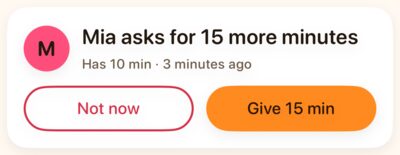
Tip: agree on what an ask is for, like the end of a movie with a friend. If asks become a habit, lower the number a day.
Two parents, and screen time for you too
With two parents, you both see the same chores and answer the same asks. And if you’d like limits on your own phone too, you can earn your own screen time next to your children.
How to set it up
The other parent
- Send an invite link. They sign in with Apple on their own phone and see the whole family.
- Link lost? On the first screen, they tap I got an invite and type the short code.
- You both see and manage everything, and whoever answers first decides.
- One subscription covers you both.
Join in, for your own screen time
- Join in from the Family tab. It sets up your habits, Screen Time for yourself with Face ID, and your apps.
- You start with 30 free minutes a day, 2 breaks a day, and earned breaks off.
- Me opens your own space, and Family switches back. The two never mix.
- Your limits are protected, as in Just me: changing them takes a tag tap or a 10-minute wait.
- The family’s subscription covers it, and the other parent can join in too, on their own phone.
Tip: try a reading half hour for everyone: one tag on the bookshelf, and a chore for the children and you, each earning with your own tap. More in Join in, for parents.
Try it with your family
Start with one situation and two or three chores, then add more once they stick. Follow the step-by-step setup, from your iPhone to your child’s first tap.
DoneThen is free for 14 days, no card needed.