
Set up DoneThen for your family
From your iPhone to your child’s first tap, step by step. It takes a few minutes, and stickers can come later.
What you need
- Your iPhone, where you manage the family.
- Your child’s iPhone or iPad, where they earn and spend minutes. No device yet? Start with coins and a streak.
- Your own Apple Account, to approve Screen Time on your child’s device.
- Later, if you like: tags. A tag is a small NFC sticker (NTAG213 or NTAG215) that an iPhone reads with a touch, or a printed QR code, which an iPad or iPhone scans. Tags are optional: until you have them, a code on your screen works, and you can mark chores done from your phone.
Everything is free for 14 days. No card needed.
1. Choose For my family
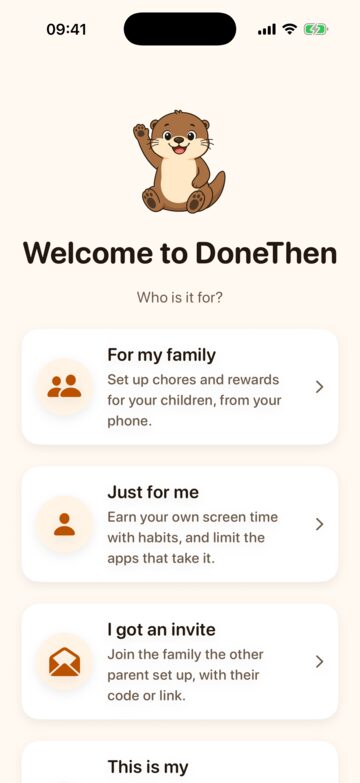
Install DoneThen from the App Store on your iPhone and open it. “Who is it for?” comes first: tap For my family. Getting started then walks you through each step, and every step after your child can wait: the Family tab keeps a checklist of what’s left.
Did the other parent already set up your family? Tap I got an invite instead, and use their code or link: you’ll see the same children and chores.
2. Three questions, then sign in
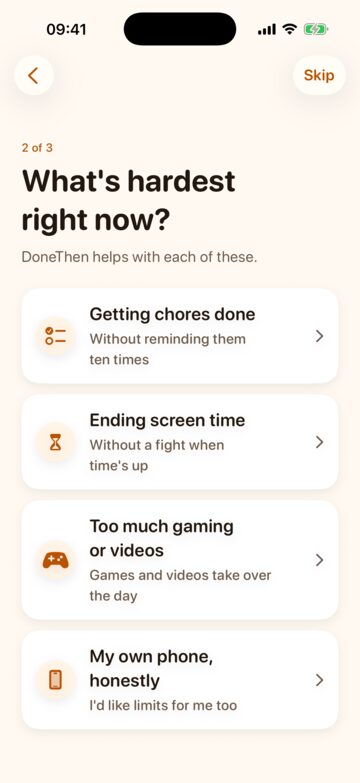
DoneThen asks how old your child is (with more than one, the youngest), what’s hardest right now, and what your child uses: their own iPhone, their own iPad, an iPad they share, or no device yet. A tap answers and moves on, and Skip is there if you’d rather not say. The answers pick chores for your child’s age and plan the next steps.
“Your plan” sums it up. Sign in with Apple to continue: DoneThen asks only for your email address, and Apple lets you hide it. Then name your family if you like, say what your children call you, like Mom or Dad (your child sees it, as in “Waiting for Mom”), and tap Create family.
3. Add your child
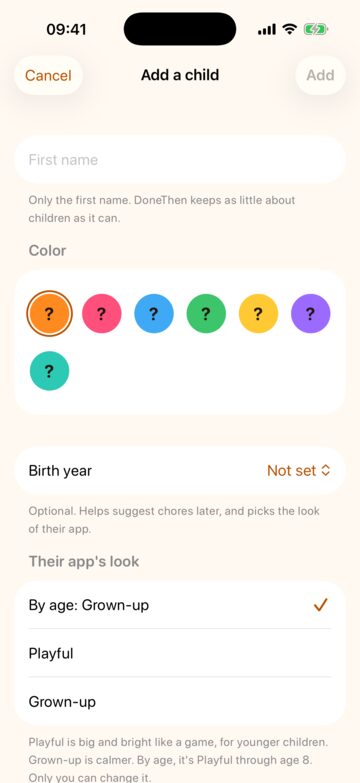
Only their first name: DoneThen keeps as little about children as it can. Pick a color, and a birth year if you like, which helps suggest chores and picks the look of their app: Playful, big and bright like a game, or Grown-up, which is calmer. By age, it’s Playful through age 8, and only you can change it.
Leave Screen time on if chores should earn minutes for apps. Turned off, chores earn coins and the streak, and your child’s device needs no Screen Time.
4. Pick their first chores
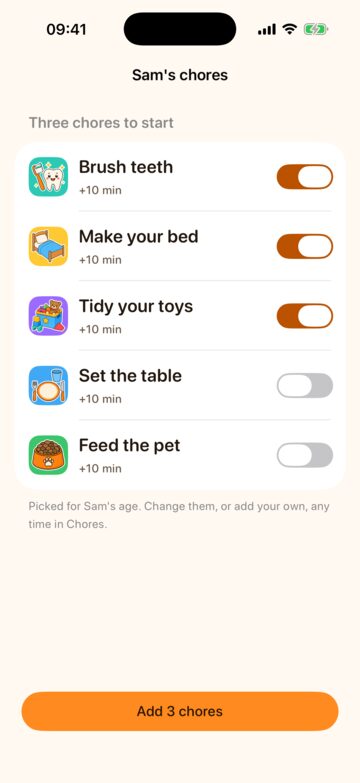
DoneThen suggests five chores for your child’s age, with three already on. Each earns 10, 15 or 20 minutes, depending on age, or 5 coins without screen time. Tap Add 3 chores. You can change them, or add your own, any time in Chores.
5. Show the code for your child’s device
Next, DoneThen lists what to do on your child’s iPhone or iPad. Have the device at hand, and tap Show the code: a QR code, and a 6-digit code to type instead. Codes work for 10 minutes, and you can make a new one any time.
Not now? Tap Later and pick when the device is free: DoneThen reminds you then. It takes about 3 minutes, with the device and your own Apple Account. You can also start it later from your child’s page in Family, with Set up a device.
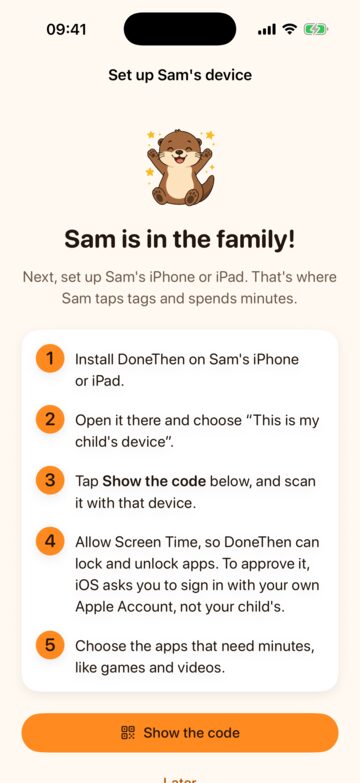
6. On your child’s device: connect it
Install DoneThen on your child’s iPhone or iPad too, and keep your phone with the code nearby. Open DoneThen there and choose This is my child’s device. Then tap Scan the code and point the camera at the code on your phone; iOS asks once to use the camera. Or tap Type the code and enter the 6 digits.
Two children sharing one iPad? Set it up for the first child, then add the next on the iPad itself. How a shared iPad works.
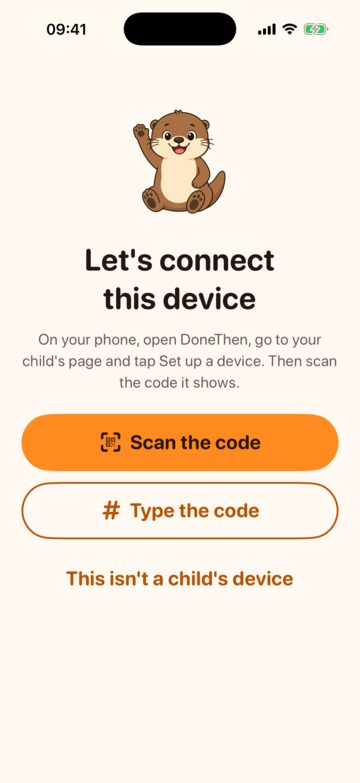
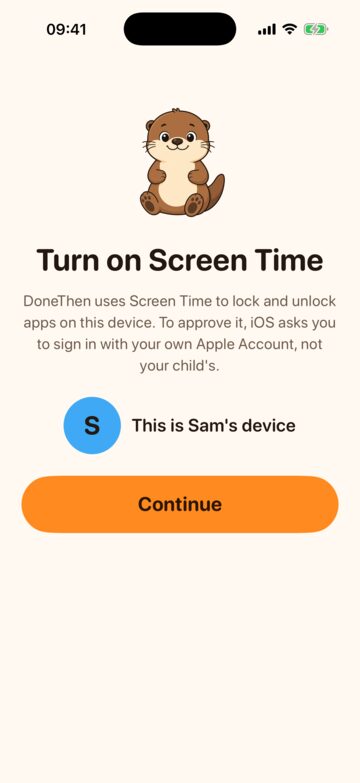
7. Turn on Screen Time
DoneThen uses Apple’s Screen Time to lock and unlock apps. Tap Continue. What happens next depends on the Apple Account the device is signed in with:
- On your child’s own Apple Account in Family Sharing, iOS asks you to sign in with your own Apple Account, not your child’s. Then only a parent can turn the limits off. It’s the strongest lock.
- On a device signed in with another account, like a family iPad on yours, iOS says no to a child’s approval. DoneThen explains, and offers Use it anyway: approve with Face ID or the passcode. The limits work the same, but anyone who can unlock the device can turn them off in Settings, so your phone shows the device as “Less strict”.
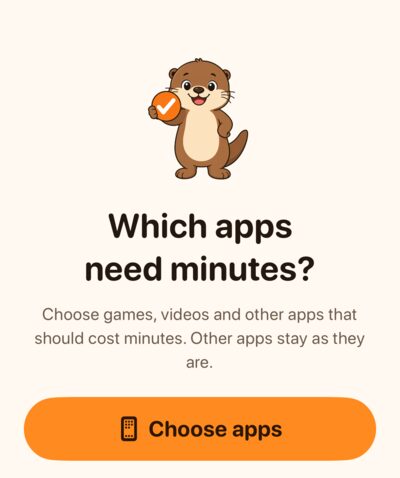
8. Choose the apps that need minutes
Tap Choose apps. Apple’s own picker opens: choose games, videos and other apps that should cost minutes. Other apps stay as they are, and DoneThen never learns which apps you picked. Tap Done.
From now on, the apps you picked open while your child has minutes, and lock again at zero, with a heads-up five minutes before.
9. The first tap, together
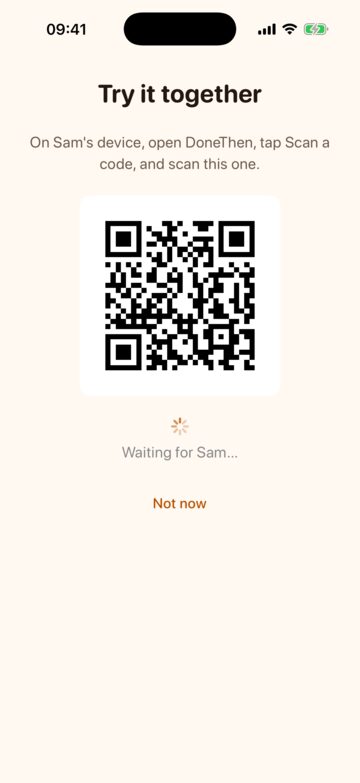
Back on your phone, getting started goes on with Try it together: a QR code for a first chore, “Say hi to DoneThen”, worth 5 minutes (or 5 coins). On your child’s device, tap Scan a code (on an iPhone, Scan a code instead) and scan it. The reward lands at once: that’s the whole idea.
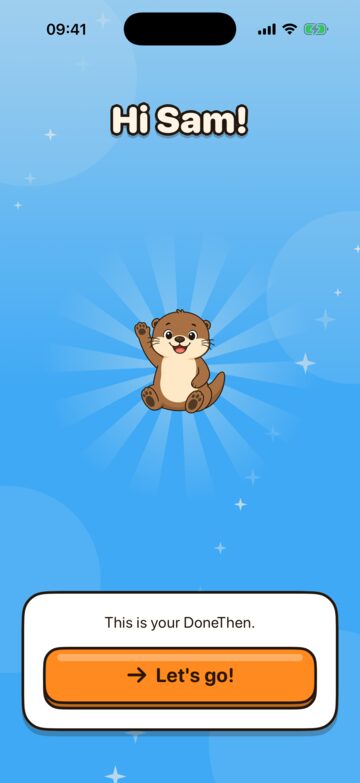
The first time your child opens their DoneThen, a short welcome shows them how it works, and they pick their color.
10. Put up the tags
A tag is a small NFC sticker or a printed QR code, paired with a chore in DoneThen. It goes where a chore ends: the toothbrush cup, the dishwasher, the desk. Your child taps it (or scans the code) when the chore is done. Getting started lists your chores with Pair a tag beside each; later, it’s in Chores, on each chore.
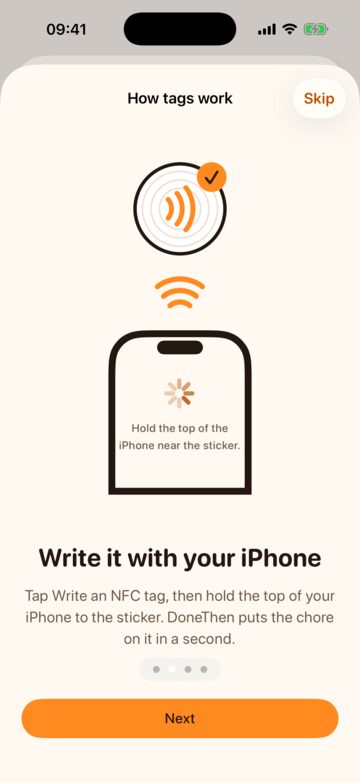
- For an iPhone: tap Write an NFC tag and hold the top of your iPhone to the sticker. DoneThen puts the chore on it in a second. Any NFC sticker of the NTAG213 or NTAG215 type works.
- For an iPad: tap Use a QR code and print it at full size. The iPad scans it with DoneThen. Chores also has Print all QR codes.
- No stickers yet? Mark chores done from your child’s page in the meantime.
Where tags work well, and the on-metal stickers for a dishwasher: Where to stick tags and which stickers to buy.
11. The other parent, and your trial
Invite the other parent with a link or a code. They see the same children and chores, get the approvals too, and your plan covers them. The link and the code work once, for 7 days.
Your free trial: everything is free for 14 days, with no card. On day 12, DoneThen reminds you, with what your family did. After the trial, choose a plan to keep earning minutes; if you don’t, your child keeps the minutes they have. Plans and prices.
12. Day to day
- Chores: your child does a chore and taps its tag. The minutes come at once, or after your OK. You choose for each chore.
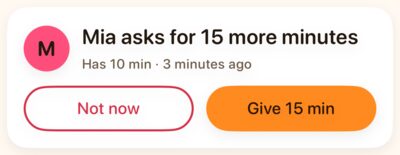
- More time: your child can ask for 10, 15 or 30 more minutes. You answer from the notification with Give or Not now.
- Your phone: approvals wait in Approvals, and your child’s page shows their history and their week. You can mark a chore done from there too.
Next: ways families use DoneThen, for school mornings, homework, a shared iPad and pocket money, and more ideas: chores by age, time windows, coins and stamps. Stuck? Support has the common questions, and a person answers every email.